
Biometric Sign-In
How to set up Biometric Sign-in (Face ID/ Touch ID) in Libro’s Mobile Banking App.

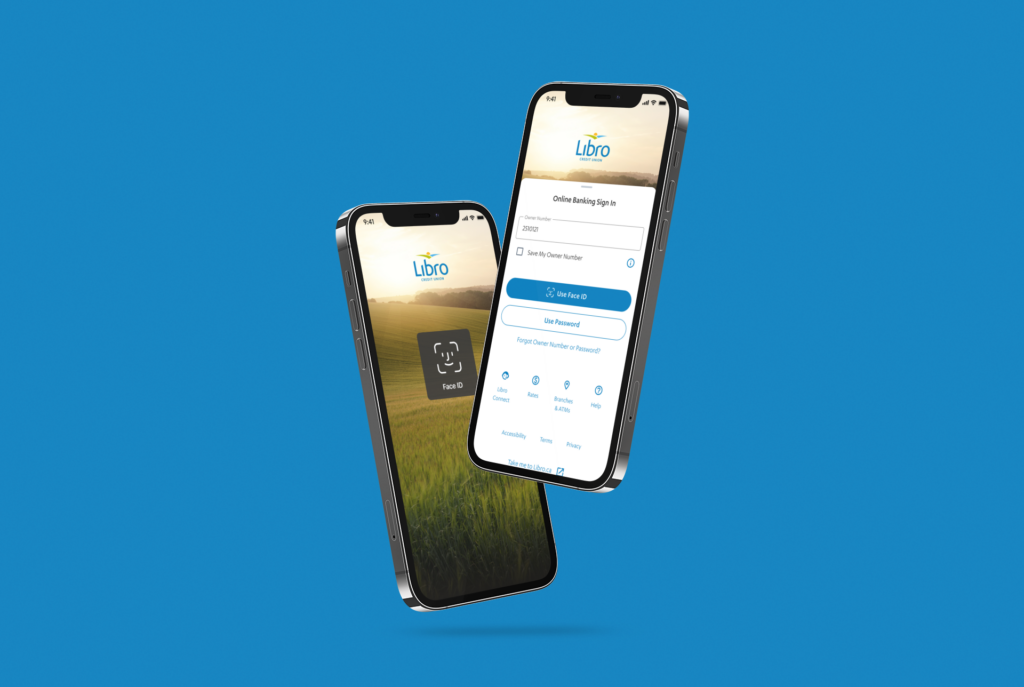
Benefits of Enabling Biometrics for Mobile Banking
- Faster, secure sign in
- No inputting a password or a 2-Step Verification code
What You Need to Know to Keep Biometric Sign-In Secure
- You must only store your own face and/or fingerprints on your device
- You must keep your device and device passcode safe
How do I set up Biometric Sign-In?
I Have Biometrics Set Up on My Device
Biometric Sign-in can only be set up the first time you sign in with your Member number on a device. After you successfully sign in, you’ll see a prompt that says “Trust This Device?”. Select Set Up Biometrics and follow the instructions provided by your device or browser.
If you choose Remind Me Later, the prompt will reappear 2 weeks after you dismiss it.
If you selected Not on This Device when first prompted, or if you signed in previously but didn’t see the option, you can bring the prompt back by either clearing your browser data and signing in again.
Please remember to only set up Biometric Sign-in on a personal device that stores your own face or fingerprints. Never share your Member number or device PIN. Learn more here..
I Don’t Have Biometrics Set Up On My Device
To start using facial or fingerprint recognition for your sign-in, you’ll need to add it first to your device.
For Apple Devices with Face ID, see their instructions.
For Apple Devices with Touch ID, see their instructions.
On Android devices, you will need to set this up by navigating to your device’s Settings. Depending on your device type, you should see an option to set up facial or fingerprint recognition under Security & Privacy.
After you’ve set up facial or fingerprint recognition on your device, you can enable Biometric Sign-In in the Libro app by following the steps outlined above.
How do I turn off Biometric Sign-In?
Turn Off Biometric Sign-In for the Libro App
In Online Banking, navigate to your Settings > Security . Under Biometric Sign-in, select ‘Manage’. Find the device you wish to remove from Biometric Sign-In from and select the more menu. Then select ‘Remove’.
Turn off Biometrics on your device overall
For Apple Devices with Face ID, see their instructions.
For Apple Devices with Touch ID, see their instructions.
On Android devices, you will need to turn this off by navigating to your device’s Settings. Depending on your device type, you should see an option to set up facial or fingerprint recognition under Security & Privacy
Does Libro Store My Identifying Data?
Libro does not store users’ biometric identifying data (faces, fingerprints), etc. Biometric data is used for sign in purposes with Apple and Android devices, with no sharing of this encrypted data to Libro, just whether the verification of a user’s identity with facial or fingerprint recognition was successful.
View the Online Service Agreement for Biometric Sign-in Users.
More on Keeping Biometric Sign-In Secure
For your peace of mind and security, you will automatically receive emails or text messages to any contact method you have setup for notifications if any settings are changed for this feature.
For extra safety, you can read about how to be ready to remotely find, lock or erase your device from Google and Apple.
You can also learn more about Stolen Device Protection from Apple.


