Secure Message

How to use Secure Message in Online Banking

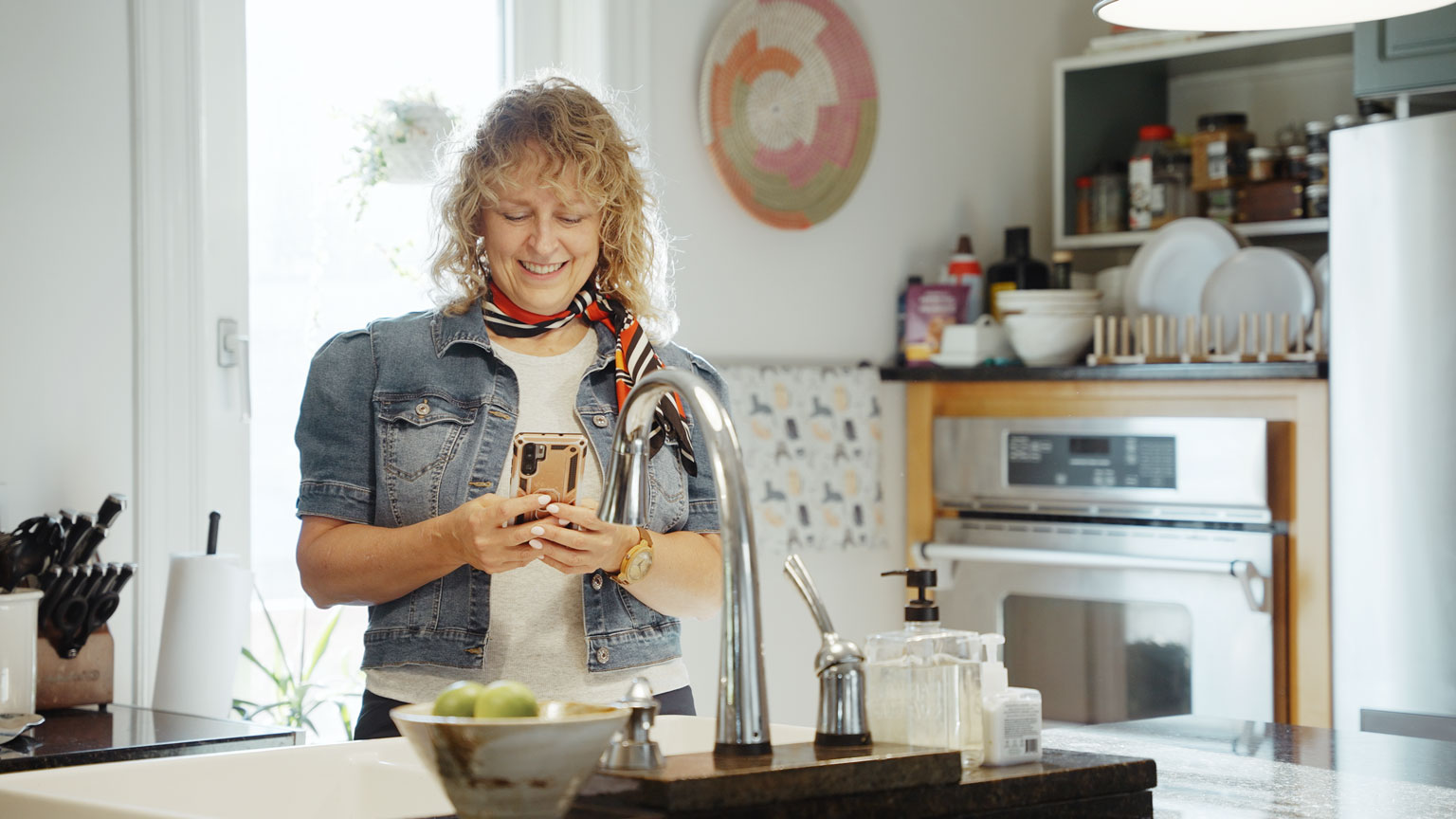
Libro Member, Noella, smiling while looking at her phone
Libro member, Noella

Connect with your Libro Coach Online

Secure Message is a great way to connect with your Coach or Libro Connect securely through Online Banking.

  • Get quick, on-the-go service
  • Ask Libro Coaches a question
  • Make an update or change to your account
Libro Member Lexxeigh sitting on a bench in the park looking at her phone
Libro member, Lexxeigh

Send a Secure Message to a Libro Coach

Desktop

To get started, follow the instructions below:

  1. Sign into Online Banking.
  2. Click “Message Us”.
  3.  Select “New Message”.
  4. Enter a title for your message where it says “Message Subject”.
  5. Add the details of your question or request in the “Message” area.
    • NOTE: Messages have a character limit of 2,000.
  6. Click “Send” and your message will be sent to Libro Connect to either reply or share your message with your Libro Coach.
  7. Once your message is sent, you will be brought back to your Messages Inbox. When a Libro Coach replies, your new message will show here.

Mobile/Tablet

  1. Sign into Online Banking.
  2. Click the “Messages” icon on the top right of the page (to the left of your initals).
    • On mobile you can click the “Messages” icon in the menu options.
  3. Select “New Message”
  4. Enter a title for your message where it says “Message Subject”.
  5. Add the details of your question or request in the “Your Message” area.
    • NOTE: Messages have a character limit of 2,000.
  6. Click “Send” and your message will be sent to Libro Connect to either reply or share your message with your Libro Coach.
  7. Once your message is sent, you will be brought back to your Messages Inbox. When a Libro Coach replies, your new message will show here.

If you have any questions or need assistance from a Coach, please contact us.
Set-up Secure Message Notifications

You can now set up alerts for receiving coach responses by e-mail or text message.

Mobile/Tablet

  1. Sign into Online Banking  or launching your mobile app.
  2. Click the “Messages” button on the top right of the page.
    • On mobile you can also click the menu options
  3. Click the three dots to the right of the “New Message” button and select “Notifications”
  4. Scroll down until you see “New Secure Message” click the envelope icon if you prefer email notifications or SMS if you prefer text message notifications. You can choose either text or email or both.
  5. Click “Save”

Desktop

  1. Sign into Online Banking.
  2. Click your profile picture or initials if you haven’t uploaded an image yet.
  3. Click the three dots to the right of the “New Message” button and select “Notifications”
  4.  Select secure message notifications the pop up then select your preferred method. You can choose either text or email or both.
  5. Click “Save”.

Alternatively, you can navigate to all settings to update your secure message preferences by:

  1. Sign into Online Banking.
  2. Click your “Profile Picture” In the main header menu, click your “Profile Menu” (or initials if you haven’t uploaded an image yet) in the top right corner.
  3. Click the gear icon called “Settings”.
  4. On the left side of the page click “Notifications”.
  5. Scroll down until you see “New Message” click the envelope icon if you prefer email notifications or SMS if you prefer text message notifications. You can choose either text or email or both.
  6. Click “Save”.

Other Resources

A blue outline of an open laptop

Libro Online Banking

Learn More
A hand with palm facing up and two coins hovering above it

Ways to Bank

Learn More
Mobile Phone

Libro Mobile Banking

Learn More

Need help? Reach out to Libro Connect