Paperless Statements

How to setup Paperless Statements in Online Banking

Couple smiling looking at laptop
Libro members, Dan and Nicole

Transforming banking one statement at a time

With paperless banking, your financial statements and banking record are never more than a couple clicks away.

  • Enjoy free online cheque image viewing.
  • Help make our planet a little greener by signing up for paperless statements through online banking.
  • Experience reduced clutter, convenience and a positive environmental impact.
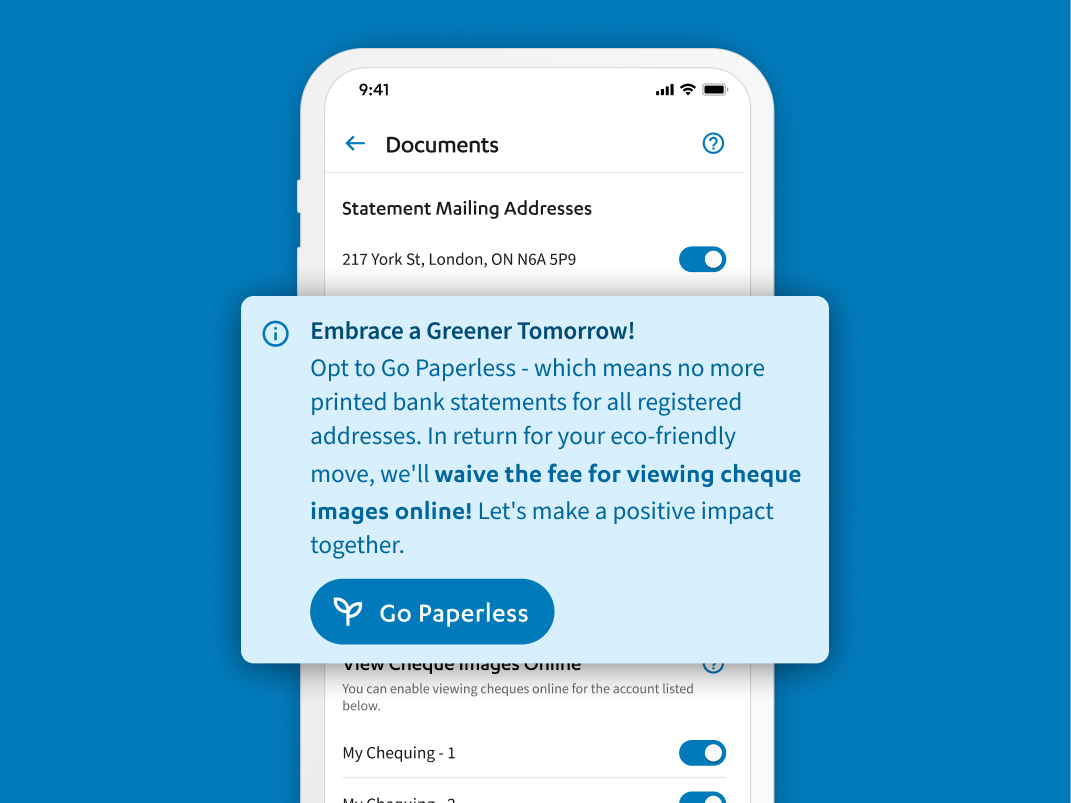
Go paperless pop up on Libro's mobile banking app

Sign up for Paperless Statements

To get started, follow the instructions below:

  1. Sign into Online Banking. Not signed up for Online Banking? Visit Online Banking page to learn more or call Libro Connect at 1-800-361-8222 to get started.
  2. In the main header menu, click your Profile Menu” (or initials if you haven’t uploaded an image yet).
  3. Select “Settings” from the drop down menu.
  4. Select “Documents” from the top tabbed menu.
  5. Under Statement Mailing Addresses toggle the slider of the according address you wish to switch to PAPERLESS slider from “OFF” to “ON” (to the right)
  6. You will see a confirmation window pop up. Make sure all is correct, and select “Close.”

If you have any questions or need assistance from a Coach, please contact us.


View Online Cheque Images

This function allows you to view images of cheques you’ve written once cleared by the recipient’s financial institution, for record-keeping.

These can be accessed under Documents> Cheque Images or within your account transactions.

Other Resources

A blue outline of an open laptop

Libro Online Banking

Learn More
A hand with palm facing up and two coins hovering above it

Ways to Bank

Learn More
Mobile Phone

Libro Mobile Banking

Learn More

Need help? Reach out to Libro Connect