Update Your Contact Information

How to update your contact information in Online Banking
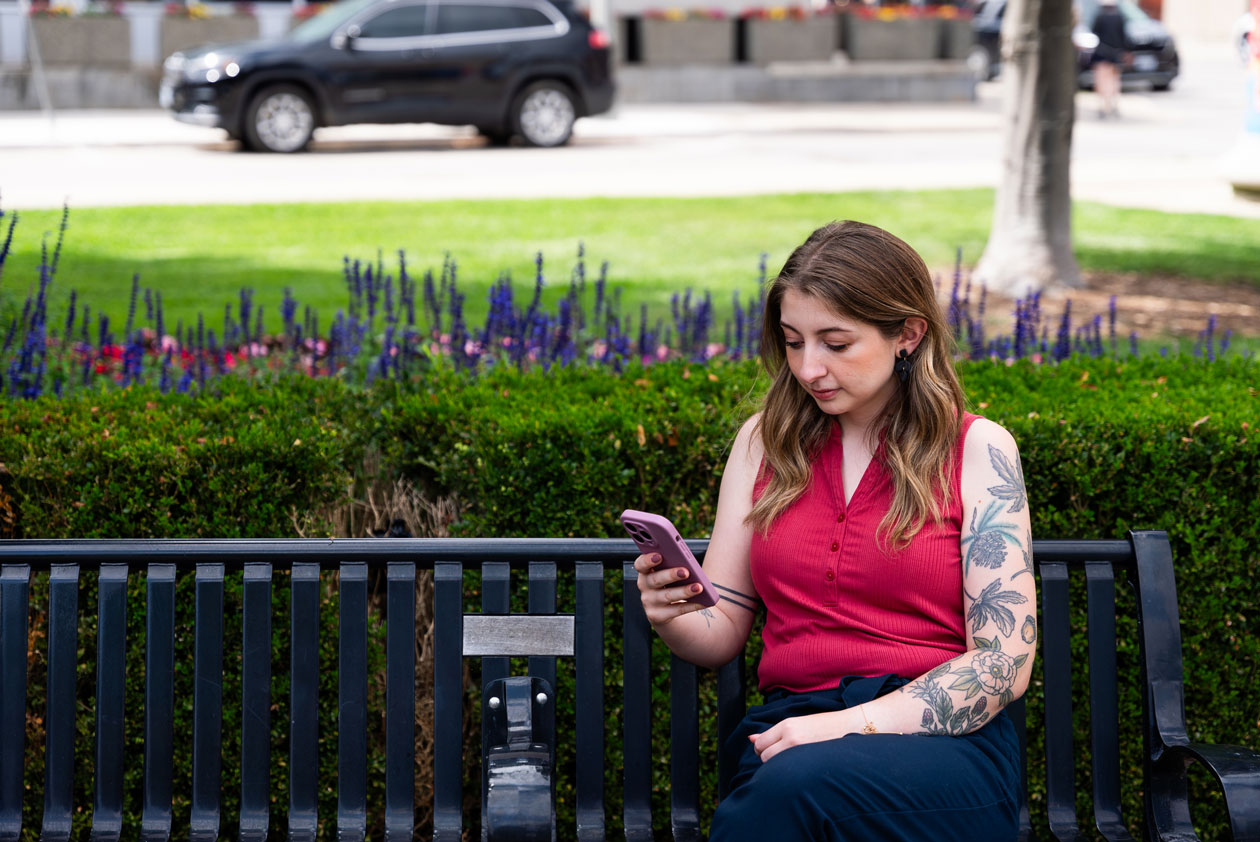
Libro Member sitting on a bench looking at phone
Libro member, Cassie

Update Your Contact Information

To get started, follow the instructions below:

  1. Sign into Online Banking.
  2. In the upper right hand corner, click on “My Profile” (or initials if you haven’t uploaded an image yet)
  3. In the dropdown, navigate to My Profile. 
  4. On this page you can view and edit your Emails, Phone Numbers, and Addresses. To update any of these, hover over the three little dots to edit.
  5. Once you edit or change your information you will see the notification “contact method has been successfully set” message pop up.


Please allow two business days for your updates to home phone number, business phone number, and address to be processed.

If you have any questions or need assistance from a Coach, please contact us.

Other Resources

A blue outline of an open laptop

Libro Online Banking

Learn More
A hand with palm facing up and two coins hovering above it

Ways to Bank

Learn More
Mobile Phone

Libro Mobile Banking

Learn More

Need help? Reach out to Libro Connect