Commercial Online Banking

How-Tos

Libro’s Commercial Online Banking provides secure 24/7 access to payment and reporting services for our commercial members. Learn how to use Libro's Commercial Online Banking and benefit from all of it's features.


Two people sitting and looking at a laptop smiling
Libro business owners, Caps-Off-Brewing-Co.

Increase Security in Commercial Online Banking

2-Step Verification is a mandatory layer of security for Commercial Online Banking. It is designed to ensure that you’re the only person who can access your business account, even if someone knows your password.

Libro uses 2-Step Verification to help you:

  • Reduce the risks of identity theft and other online fraud
  • Assign authorized Administrators and General Users
  • Feel safe and secure in your business finances
Libro Business Owner, Donaldson Home Services
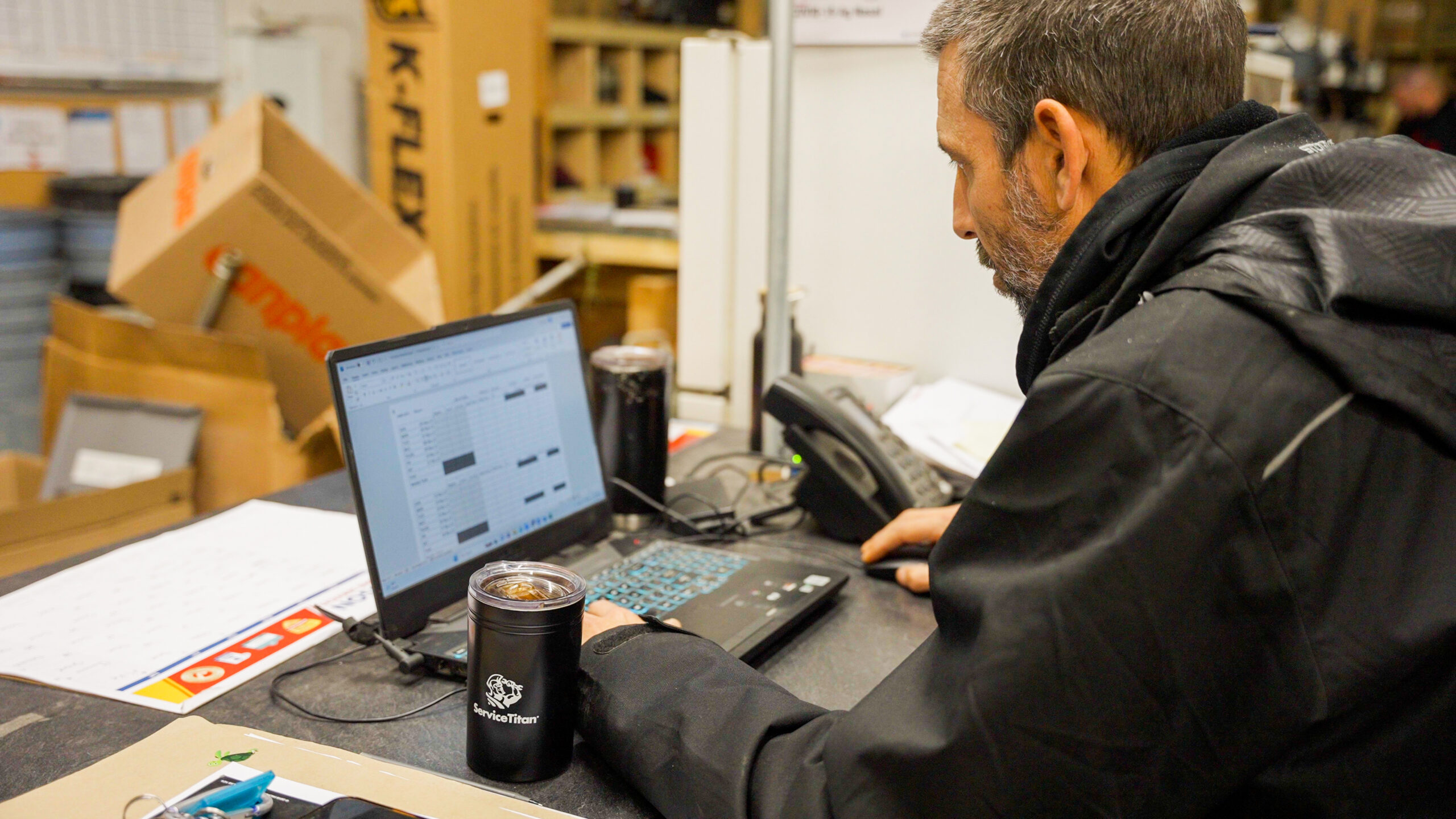
Libro business owner, Donaldson Home Services

How-to Instructions

To get started watch the video below:

Libro Credit Union logo above the text "Commercial Online Banking" on a white background.

To get started watch the video below:

Libro Credit Union logo above the text "Commercial Online Banking" on a white background.

To get started watch the video below:

To get started watch the video below:

Libro Credit Union logo above the text "Commercial Online Banking" on a white background.

Setting up 2-Step Verification for the first time

When you access Commercial Online Banking for the first time, follow the instructions below:

  1. Start by entering your Administrator or General User login credentials. You will immediately enter the setup process.
  2. Read the notice and continue by tapping Secure My Account
    Now we will set-up 2-Step Verification (mandatory for all).
  3. Tap on Set up Default Verification Method to enter your default trusted contact.
  4. Select or enter (if new) the trusted phone number or email where you want to receive verification codes when you sign in. You can choose to receive the codes by text message or email.
  5. Tap Send, Libro will send a verification code to the trusted contact you provided.
  6. Enter the verification code and tap Verify to continue.
  7. Select how often you want to be prompted for your verification code.
    • NOTE: Only Administrators have the ability to edit how often they get asked for a code.
  8. Agree to the terms of Libro’s service agreement, and Save.

If you have any questions or need assistance from a Coach, please contact us.

To get started watch the video below:

Libro Credit Union logo above the text "Commercial Online Banking" on a white background.

To get started watch the video below:

Libro Credit Union logo above the text "Commercial Online Banking" on a white background.

To get started watch the video below:

Libro Credit Union logo above the text "Commercial Online Banking" on a white background.

To get started watch the video below:

Libro Credit Union logo above the text "Commercial Online Banking" on a white background.

Need support?

Our cash management team is happy to assist you.

Libro Staff sitting in a lIbro location

Related Pages

A blue outline of an open laptop showing a document and a dollar sign

Business & Commercial Online Banking

See Features
Small Business

Cash Management

See Options
Blue and yellow line icon of two pieces of paper and a pen

Business Borrowing

See Options