Switching Business Workspace Views
Learn how to select and switch which accounts you see in Business Online Banking by switching your workspace views.
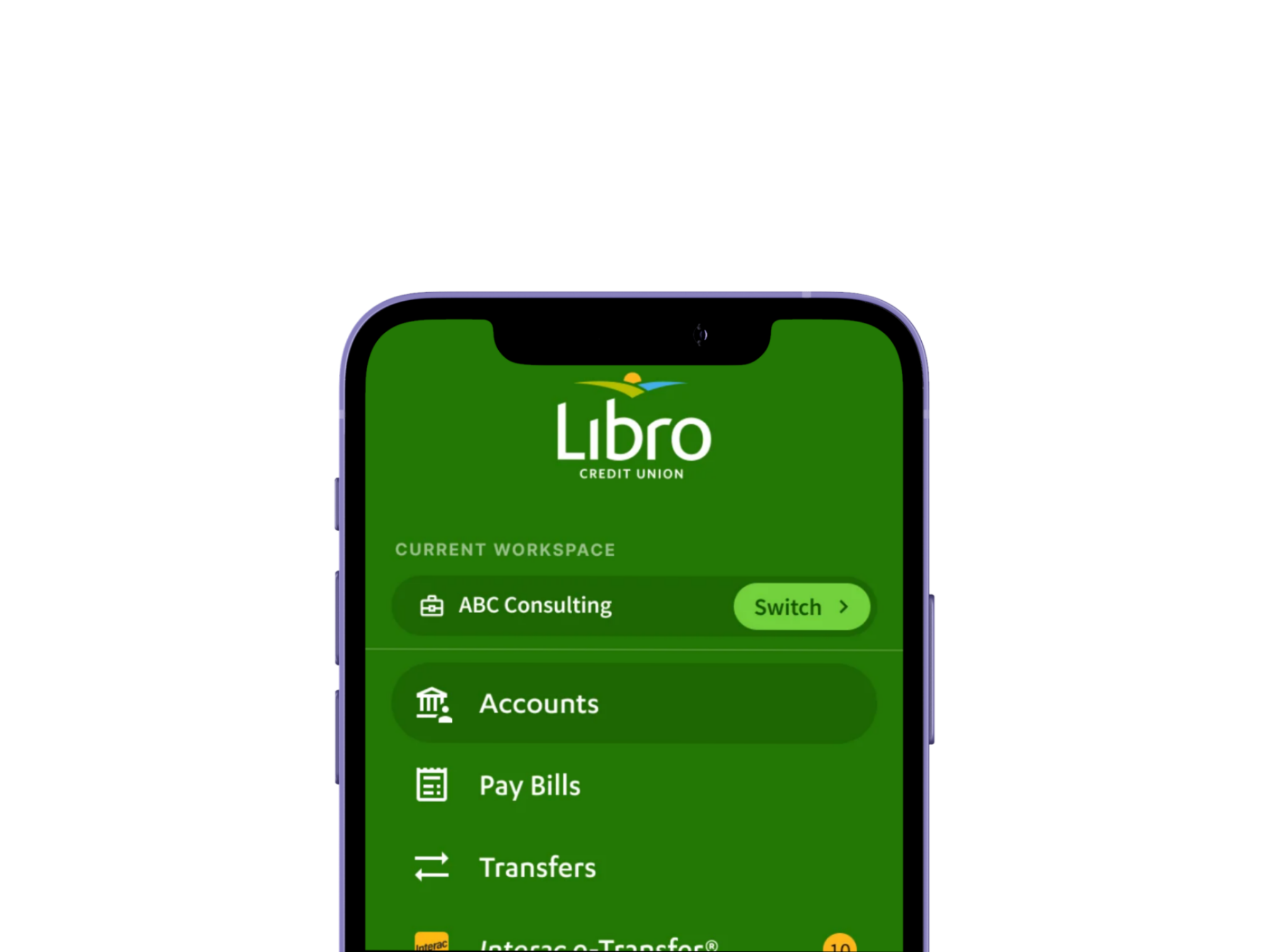
Switch Workspaces/Account Views
- Select Switch from the left navigation on desktop or the More menu on mobile. It will be next to the name of the current account you are viewing.
- Select the workspace account you want to view. Note: If you would like to use Combined View, where you can view all accounts at once, you must change your default workspace view in Settings using the steps below.
- Wait for Online Banking to refresh.
- Confirm the account name displayed in the navigation matches the workspace you selected.
Change Default Workspace View
- Open Settings.
- Navigate to Accounts View.
- Select the preferred default workspace.
- Your changes will save automatically.