Switching Business Workspace Views

Learn how to select and switch which accounts you see in Business Online Banking by switching your workspace views.
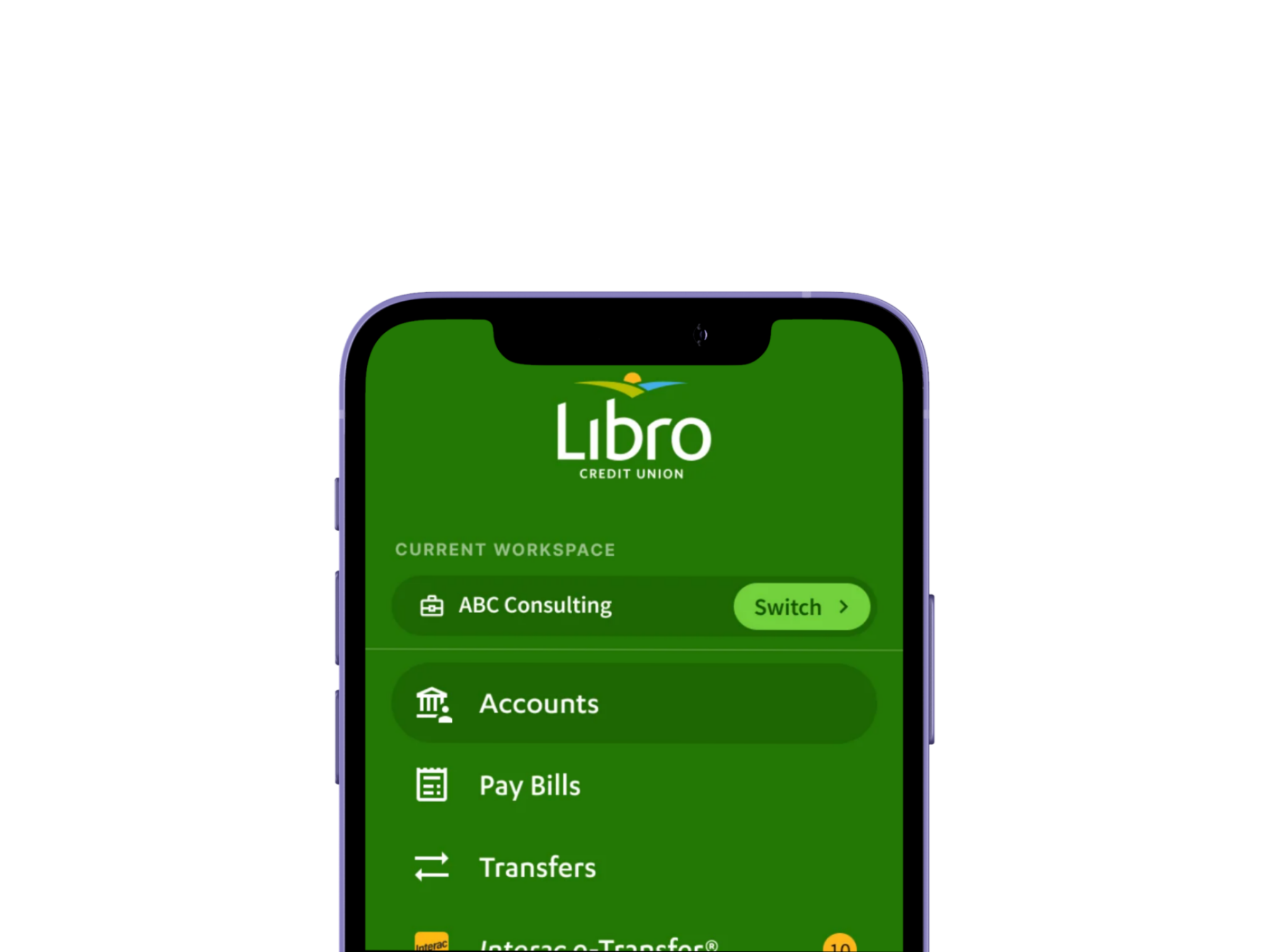
Switch Workspaces/Account Views

  1. Select Switch from the left navigation on desktop or the More menu on mobile. It will be next to the name of the current account you are viewing.
  2. Select the workspace account you want to view. Note: If you would like to use Combined View, where you can view all accounts at once, you must change your default workspace view in Settings using the steps below.
  3. Wait for Online Banking to refresh.
  4. Confirm the account name displayed in the navigation matches the workspace you selected.

Change Default Workspace View

  1. Open Settings.
  2. Navigate to Accounts View.
  3. Select the preferred default workspace.
  4. Your changes will save automatically. 

Other Resources

A blue outline of an open laptop

Libro Online Banking

Learn More
A hand with palm facing up and two coins hovering above it

Ways to Bank

Learn More
Mobile Phone

Libro Mobile Banking

Learn More

Need help? Reach out to Libro Connect