
Interac e-Transfer
Everything you need to send, receive, request, and manage Interac e-Transfers with Libro.

Send or Request Money
Transfer funds instantly or ask friends, family, and clients to pay you back with no awkward conversations.
Simple & Direct Deposits
Skip security questions entirely by connecting your email or mobile number directly to your account.
Multi-Signer Support
Seamlessly send or approve transfers requiring dual authorization for joint or commercial accounts.
Getting Started Basics
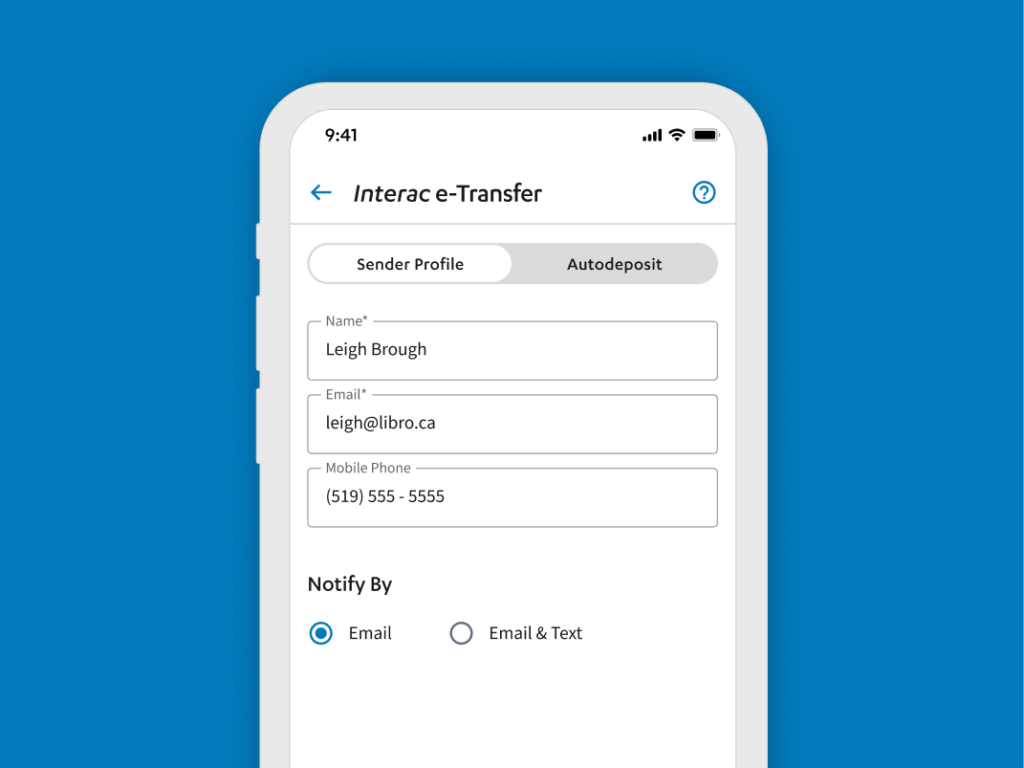
Setting Up Your Sender Profile
Before sending or receiving your first transfer, set up your sender profile to choose how your name appears to contacts and select how you wish to receive transaction notifications.
- Log into Online Banking or Mobile App.
- Select Interac e-Transfer > Enter your display name.
- Input your email/mobile phone number and set your notification preferences.
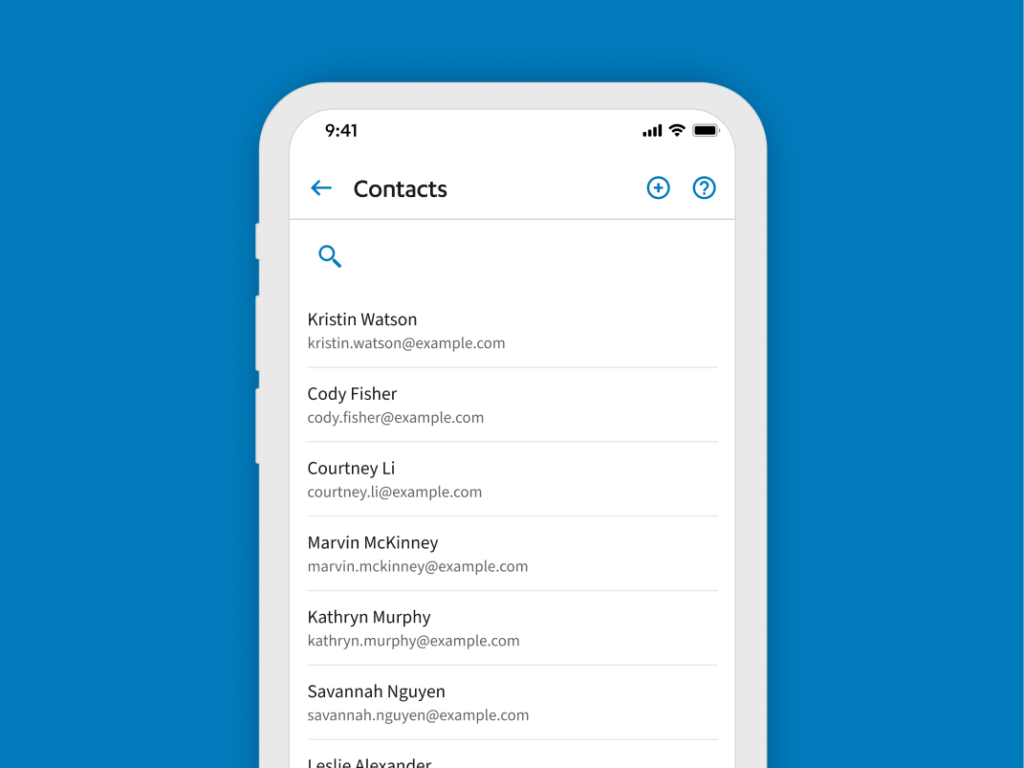
Managing Your Contact List
Store your frequent contacts to make future payments fast and hassle-free.
- In Interac e-Transfer, select Contacts.
- Click Add Contact, enter their details (Name, Email/Text option), and save.
- Edit or delete existing contacts anytime with the three-dots menu.
How-To Step-by-Step Instructions
How to Send an Interac e-Transfer
Note: If you’re using Interac e-Transfer for the first time, you’ll need to setup your Sender Profile before getting started. Simply follow the onscreen instructions.
To send an Interac e-Transfer, follow the steps below:
- Sign into Online Banking.
- Select ‘Interac e-Transfer’ in the main menu.
- Input the dollar amount you want to send.
- Choose a contact to send money to.
- If needed, add a new contact by selecting the + button.
- Select the account you want the money to come from.
- Optional: Schedule the transfer by turning on Schedule and selecting a future date.
- If the recipient isn't registered for Autodeposit, create a security question and share the answer with them separately. Don't include the answer in the message field.
- Optional: Add a message for your contact.
- Click ‘Send’ and ‘Confirm’.
Depending on the account option you have, you may be charged $1.50 for sending an Interac e-Transfer. Visit our Accounts page to learn more.
Note: While an Interac e-Transfer is pending, you can cancel it if needed. However, if the recipient has Autodeposit or has already accepted the deposit, then there will be no option to cancel.
How to Deposit/Accept an Interac e-Transfer
Note: If you do not have an Online Banking login at Libro, you can activate Online Banking today by calling Libro Connect Monday - Friday 8am - 8pm, Saturday 8am - 4pm at 1-800-361-8222.
To get started, follow the steps below:
- Check your email inbox or text messages for an Interac e-Transfer message. Click the link in the message.
- If you cannot click the link, cut and paste the link into your browser.
- Follow the instructions to select and log into your Libro account.
- Enter the security answer and click ‘Accept’.
- Choose the account to deposit the money into and click ‘Deposit’.
To make the process even easier and more secure next time, set up Autodeposit today.
How to Set Up and Manage Autodeposit
Set Up Autodeposit
- Sign into Online Banking.
- Select “Interac e-Transfer’ in the main menu.
- Select the More (︙) menu, then Auto Deposit Settings, and ‘Interac e-Transfer’.
- Click ‘Register an Account’
- Select the contact method you want to register Autodeposit for: ‘Email’ or ‘Mobile’.
- Input the email or mobile phone number you want to connect your account to.
- Select the account you want the money deposited into.
- Select ‘Register’.
- A message will be sent to the contact method you chose. Open your email inbox or text messages and follow the instructions to complete your registration process.
- Note: the link will expire in 24 hours.
Note: You can register up to five different contact methods to five different accounts. However, once a contact method is registered for the feature, it can’t be used again with another account. Simply click the blue ‘+’ button and follow the steps above again for a different contact method.
Change Autodeposit
- Sign into Online Banking.
- Select “Interac e-Transfer’ in the main menu.
- At the top of the page click the three little dots ︙and click ‘Auto Deposit Settings’ and ‘Interac e-Transfer’.
- Toggle to ‘Autodeposit’.
- Select the More (︙) menu beside the email or mobile number you want to update.
- Click ‘Edit’.
- Make the desired changes to the contact method and account.
- Click ‘Save’.
Remove Autodeposit
- Sign into Online Banking.
- Select “Interac e-Transfer’ in the left-hand main menu.
- At the top of the page click the three little dots ︙and click ‘Auto Deposit Settings’ and ‘Interac e-Transfer’.
- Toggle to ‘Autodeposit’.
- Click on the email or mobile phone number you want to remove.
- Click ‘Delete’ and ‘Remove’.
How to Cancel an Interac e-Transfer
- Sign into Online Banking.
- Select ‘Interac e-Transfer’ in the main menu.
- Click the ‘Transactions’ tab.
- If the transaction is complete, it cannot be cancelled and will show in ‘History’.
- If the transaction can still be cancelled, it will show in the ‘Processing’ tab.
- Navigate to the ‘Processing’ tab and click the transaction you want to cancel. The status will show as ‘Pending’ for sent transfers and ‘Available’ for requested transfers.
- Click ‘Delete’ and confirm your choice by selecting ‘Delete’ again.
Note: When you cancel an Interac e-Transfer, the service charge will not be refunded.
How to Request Money
- Sign into Online Banking.
- Select ‘Interac e-Transfer’ in the main menu.
- Select ‘Request’ on the toggle menu.
- Input the dollar amount you want to request.
- Choose a contact to request money to.
- If needed, add a new contact by selecting the + button.
- Select the account you want the money deposited to.
- Optional: Turn on This is an Invoice, then enter the invoice number and due date.
- Optional: Add a message.
- Read and accept the consent statement by clicking the tick box.
- Click ‘Request’ and ‘Confirm’.
Once the recipient accepts your request, the money will be deposited into your selected account. If your account does not include free Interac e-Transfers, you will be charged the $1.50 service fee at the time the request is accepted and deposited.
Note: While an Interac e-Transfer is pending, you can cancel it if needed. However, if the recipient has already completed the request for money, you cannot cancel it.
How to Use 2-to-Sign Interac
Note: If you’re using Interac e-Transfer for the first time, you’ll need to set up your Sender Profile before getting started. Simply follow the on-screen instructions.
- Sign in to Online Banking.
- Select ‘Transfers’ in the top menu, then ‘Interac e-Transfer’.
- Input the dollar amount you want to send.
- Choose a contact to send money to.
- If you do not have the contact set up, click the blue ‘+’ button to add a new contact or visit your
“Contact List” to manage your contacts.
- If you do not have the contact set up, click the blue ‘+’ button to add a new contact or visit your
- Select the account you want the money to come from.
- Optional: Schedule the transfer for a future date.
- Click the toggle to the right of ‘Schedule’.
- Select the date you want the transfer to be sent.
- Create a security question for your contact to answer.
- If the recipient is registered for Autodeposit, you will not need to create a security question.
- Make sure to safely share the security answer with your contact. For your protection, make sure the answer isn’t obvious and do not share the answer in the optional message field.
- Optional: Share a message with your contact – could be a quick “Thank you” or a reason for the transfer.
- Click ‘Send’ and ‘Confirm’.
Depending on the account option you have, you may be charged for sending an Interac e-Transfer. Visit our Accounts page to learn more.
How to Accept or Decline a 2-to-Sign Interac e-Transfer
- You will receive a notification about this transaction ready for your approval via email or text message.
Didn’t receive a text or email? Make sure to add at least one contact method in ‘My Profile’ and select using it for notifications. - Sign in to Online Banking.
- Select ‘Interac e-Transfer’ in the main menu. In Interac e-Transfer go to the ‘Transactions’ tab. You can also alternatively see the Interac e-Transfer awaiting your approval by selecting the bell icon after signing in – which shows all transactions awaiting your approval (transfers, bill payments too.) Select the relevant Interac e-Transfer.
- You will see options to Approve or Decline the transaction.
If you would like the e-Transfer to proceed, but a detail of it isn’t correct, such as date or amount, decline the transaction and contact the creator of the transaction. They will need to create a new one.
Need help? Reach out to Libro Connect
Frequently Asked Questions
What is the cost to send an Interac e-Transfer?
The cost will depend on what account you send money from. See account options.
The Simplify Chequing, Premium Chequing and Go Free Chequing accounts have free, unlimited Interac e-Transfers.
All other accounts will be charged $1.50 for each Interac e-Transfer sent. This is a fee at the time of the transaction and is in addition to regular transaction fees or monthly package fees.
Can I edit an Interac e-Transfer after I send it?
No, you cannot edit transfers after they are sent. If the money has not been deposited yet, you can cancel the transfer and create a new one. If you were charged a service fee to send the Interac e-Transfer, it will not be refunded.
To cancel an Interac e-Transfer:
- Sign into Online Banking.
- Select ‘Interac e-Transfer’ in the main menu.
- Click the ‘Transactions’ tab.
- If the transaction is complete, it will show in ‘History’.
- If the transaction can still be cancelled, it will show in the ‘Processing’ tab.
- Click on the transaction you want to cancel. The status will show as ‘Pending’ for sent transfers.
- Click ‘Cancel Transaction’ and confirm your choice by selecting ‘Cancel Transaction’ again.
What is the cost to request an Interac e-Transfer?
The cost will depend on what account you send money from. See account options.
The Simplify Chequing and Premium Chequing have free, unlimited Interac e-Transfers. The Go Free Chequing account includes 10 free request money transactions.
All other accounts will be charged $1.50 for each Interac e-Transfer request. This is a fee that will be taken from your account when the request is accepted and deposited to your account and is in addition to regular transaction fees or monthly package fees.
Can I attach an invoice while requesting money?
Currently, you cannot attach an invoice when requesting money through Interac e-Transfer. However, you can include an invoice number and invoice due date within the request for money transaction details.
How many contact methods can I register for the Autodeposit feature?
You can register up to five different contact methods to five different accounts. However, once an email or phone number is registered for the feature, it can’t be used again with another account.
For instance, if you register your personal Gmail account with your Premium Chequing account, you cannot then register that same email address at Libro (or any other Financial Institution) to be associated with another account. The logic is fairly simple, as Interac would be conflicted as to which account to deposit the money.
Can I cancel a 2-to-Sign Interac e-Transfer?
While an Interac e-Transfer is pending, or waiting for the recipient’s response, or a future date, you, as the initiator, can cancel it if needed.
However, if a co-signer has already approved, and the recipient has Autodeposit, or has already accepted the deposit, then there is no option to cancel.